Showing posts with label Unix/ Linux. Show all posts

Saturday, October 11, 2014

Can't find boot-repair package in Ubuntu

Solution:
 
sudo add-apt-repository ppa:yannubuntu/boot-repair
sudo sh -c "sed -i 's/trusty/saucy/g' (continue below)
              /etc/apt/sources.list.d/yannubuntu-boot-repair-trusty.list"
sudo apt-get update
sudo apt-get install -y boot-repair && (boot-repair &)
 
Read more :  link

Thursday, June 12, 2014

Montage: Create a composite image by combining several separate images

Use the montage program to create a composite image by combining several separate images. The images are tiled on the composite image optionally adorned with a border, frame, image name, and more. See Command Line Processing for advice on how to structure your montage command or see below for example usages of the command.

Example Usage

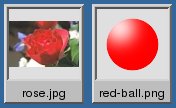
We list a few examples of the montage command here to illustrate its usefulness and ease of use. To get started, let's montage two images into a single composite:

$ montage -background #336699 -geometry +4+4 rose.jpg red-ball.png montage.jpg
Ok, let's add some decorations:
$ montage -label %f -frame 5 -background #336699 -geometry +4+4 rose.jpg red-ball.png frame.jpg

montage -geometry "1280x480" -tile 2x2 1.jpg 2.jpg 3.jpg 4.jpg montage.jpg 

Source: http://www.tutorialspoint.com/unix_commands/montage.htm 

Friday, May 2, 2014

PyFR, open-source high-order flow solver

PyFR
 
www.pyfr.org

an open-source high-order flow solver that is designed to efficiently target a range of hardware platforms - including clusters of multi-core CPUs, Nvidia GPUs, Intel Xeon Phi Coprocessors, and AMD GPUs - all from a single Python codebase.

Sunday, April 27, 2014

Java on linux and internet brower : chrome / firefox


Install java add on firefox / google chrome
Download
  1. Go to http://java.com and click on the Download button, http://www.java.com/en/download/
Java for Linux Platforms
The instructions below are for installing version Java 7 Update 7 (7u7). If you are installing another version, make sure you change the version number appropriately when you type the commands at the terminal. Example: For Java 6u35 replace 7u7 with 6u35. Note that, as in the preceding example, the version number is sometimes preceded with the letter u, and sometimes it is preceded with an underbar, for example, jre1.7.0_07.

  1. Change to the directory in which you want to install. Type:
    cd <directory path name>
    For example, to install the software in the /usr/java/ directory, Type:
    cd /usr/java/

    Note about root access: To install Java in a system-wide location such as /usr/local, you must login as the root user to gain the necessary permissions. If you do not have root access, install the Java in your home directory or a sub directory for which you have write permissions
  2. Move the .tar.gz archive binary to the current directory.
  3. Unpack the tarball and install Java
    tar zxvf jre-7u7-linux-i586.tar.gz

    The Java files are installed in a directory called jre1.7.0_07 in the current directory.
    In this example, it is installed in the /usr/java/jre1.7.0_07 directory.
  4. Delete the .tar.gz file if you want to save disk space.
Google Chrome
  • Become the root user by running the su command and then enter the super-user password. Type:
    sudo -s
  • Create a directory called plugins if you do not have it. Type:
    mkdir -p /opt/google/chrome/plugins
  • Go to Google chrome plugins directory before you make the symbolic link. Type:
    cd /opt/google/chrome/plugins
  • Create a symbolic link. Type:
    ln -s /usr/local/java/jre1.7.0/lib/amd64/libnpjp2.so
  • Restart your browser and test Java
Mozilla Firefox
  • Become the root user by running the su command and then enter the super-user password. Type:
    sudo -s
  • Create a directory called plugins if you do not have it. Type:
    mkdir -p /usr/lib/mozilla/plugins
  • Go to Google chrome plugins directory before you make the symbolic link. Type:
    cd /usr/lib/mozilla/plugins
  • Create a symbolic link. Type:
    ln -s /usr/local/java/jre1.7.0/lib/amd64/libnpjp2.so
  • or  sudo ln -s /usr/local/java/jre1.7.0_55/lib/i386/libnpjp2.so (use/lib/mozilla/plugins)
  • or  sudo ln -s /usr/local/java/jdk1.7.0_25/jre/lib/i386/libnpjp2.so
  • or sudo ln -s ./jdk1.7.0/jre/lib/i386/libnpjp2.so   (32 bit)
  • Restart your browser and test Java
Source: http://www.java.com/en/download/help/linux_install.xml 

Wednesday, April 16, 2014

Screen Print, Video recorder, Image/ Video Converter in Linux, Ubuntu

Shutter program
mencoder (MPlayer's Movie Encoder) 
GTK Record My Desktop

Imagemagick to capture the screen in linux, Ubuntu

How to capture screen in Ubuntu

Install : $ sudo apt-get install imagemagick  

Capture whole screen: $ import -window root Image.png

Capture selected window: $ import Image.png

Capture frame: $ import -frame Pictures/Image.png

Capture selected window and resize: $ import -resize 320 -pause 3 Image.png


Convert video format .ogv to avi or mp4 

ffmpeg -i my-demo-video.ogv -vcodec mpeg4 -sameq -acodec libmp3lame my-demo-video.avi

ffmpeg -i out.ogv -vcodec libx264 -vpre medium -crf 24 -threads 0 -acodec copy foo.mkv

ffmpeg -i out.ogv -vcodec libx264 -vpre medium -crf 24 -threads 0 -acodec libfaac foo.mp4

Convert many files using shell
#!/bin/bash
# ovg2avi - Covert ovg to avi
# Author: Vivek Gite <www.cyberciti.biz> Under GPL 2.0+
# -------------------------------------------------------
input="$1"
output="${input%%.ogv}.avi}"

die(){
   echo -e "$@"
   exit 1
}

[ $# -eq 0 ] && die "Usage: $0 input.ovg\n\tI will convert .ovg file to .avi format."
[ ! -f "$input" ] && die "Error $input file not found."

if [ -f "$output" ]
then
read -p "Warning output file $output exists. Overwrite (y/n)? " ans
case $ans in
y|Y|YES|Yes) mencoder "${input}" -ovc lavc -oac mp3lame -o "${output}";;
esac

fi

Covert many file using bash
for o in *.ogv
do
   /path/to/ovg2avi "$o"

done

Sunday, April 13, 2014

Cygwin: Using Linux in Window


Cygwin: Get that Linux feeling - on Windows

Cygwin is:
  • a large collection of GNU and Open Source tools which provide functionality similar to a Linux distribution on Windows.      
  • a DLL (cygwin1.dll) which provides substantial POSIX API functionality.
http://cygwin.com/

To install the new package: Run setup.exe again and select the desired package, tick on "Src?" square
Select “Install from Internet”

cygpath                Convert Unix and Windows format paths, or output system path information 
cygcheck             List system information, check installed packages, or query package database.
cygcheck -l test    list all file contain "test"
cygcheck -c  \      Check package and version number
dumper                Dump core from WIN32PID to FILENAME.core
getconf                Get configuration values


C/C++, Fortran, compiler with cygwin
- "gcc", "gdb", and "make" in the search separately to find the package, select the desired package
- it usually locates at "Devel" (development)
- $ g++ -v      : after instaled, go to cygwin terminal  to check whether gcc was installed
- $ cygcheck -c bash binutils bzip2 cygwin gcc-core gcc-g++ gcc-java gzip  m4 make unzip zip
                        check the package need for gcc
cygcheck -c  \
$ g++ --version   check g++ version   
$ gcc --version   check  gcc version 
- $ gcc -c program.c -o program      try to compile a file


ERRORS and problems solving
- vi/ vim error in Cygwin: error with backspace, arrow,  type "vim" in select packages> Search. Then select package: "vim", "gvim", "vim-common", "vim-minimal", "vim-debuginfo"
cp /usr/share/vim/vim7/vimrc_example.vim  ~/.vimrc
$ vim file.txt    use vim instead of vi, or u can make a short cut in .bashrc

Tuesday, April 8, 2014

Vi/vim linux text editor, useful tip

sudo apt-get install vim , to install the vim package

>> vi text.txt          use this command at the termimal
>> vi -r text.txt      open recovery unsaved file from previous work
 
Turn on color syntax for vi/vim permanent
$ cd ~     go to home directory
$ vi .vimrc
in editing of file    ".vimrc"
#---------------------------
syntax on
colorscheme morning

#-------
Options: morning, peachpuff, blue, murphy, ron, zellner, darkblue, desert, koehler, and shine

vi is case-sensitive


Main/ Command Mode
Esc         to escape from editor mode

:           to move the cursor to the bottom of the screen
: set nu
: set number                to show the line numbers
: set nonumber            to hiden the line numbers
: syntax on                   turn on syntax highlight in editor
: syntax off                   turn off syntax highlight in editor
: colorscheme elflord   change colorscheme
Options: morning, peachpuff, blue, murphy, ron, zellner, darkblue, desert, koehler, and shine


0                       move cursor to the beginning of the line
$                       move cursor to the end of the line

1G                    move cursor to the beginning of the file, line 1
:0 + Enter       move cursor to the beginning of the file, line 1
NG                   move cursor to the N number of lines of the file
:N + Enter      move cursor to the N number of lines of the file  
G                      move cursor to the end of the file, the last line
:$ + Enter       move cursor to the end of the file, the last line 

: f                     display current file name and line number

k                       move cursor up
j                        move cursor down
h                       move cursor up
l                        move cursor to the right

w                      move cursor to the beginning letter of the next word
b                       move cursor to the beginning letter of the previous word

                       undo previous

dd                      delete current line
dNd or Ndd      delete current and next N (number) lines
D                       delete the rest of the line from the current cursor
dw                     delete the word within cursor

yy                      copy current line
yNy or Nyy       copy current and next N (number) lines

p                        paste


EDITOR / INSER mode : 
            press "i" to go to this mode 
            press "Esc" to go back to the command mode

i                      to go to editor mode at the current cursor position
I                      to go to editor mode at the beginning of the line content a cursor

:q! + Enter       to quit or exit without saving
:wq! + Enter   to save and exit
:x + Enter        to quit and write


Thursday, March 13, 2014

Useful tips in Ubuntu


  • Show hidden files: at the browser, Ctrl + H
  • Essential update: System > Update Manager
  • Set up a startup applications: Setting button (gear shape on the upper right corner) > Starup Applications > Add> Add Name, Command (important, it is normally located at /usr/bin/)
  • Add new repositories: System > Administration > Software Sources > Third Party Software > Add
  • Check the package manager: System > Administration > Synaptic Package Manager
  • Add bookmark for explorer: go to folder and Ctrl + D

Thursday, January 23, 2014

List of useful Linux terminal shortcut / commands / tips

list of useful command in Linux (Ubuntu, Suse, Redhat, ...)

NOTES
Open a new terminal:
  • Applications menu -> Accessories -> Terminal.
  • Ctrl + Alt + T
  • Ctrl + Shift + T: open a new tab
$ gksudo nautilus    open Folder Explorer

INSTALL NEW PACKAGE OR SOFTWARE
After download .tar.gz file
$ tar –xvzf Folder.tar.gz
----------------------------------------------------------------
install software, application if they provide .sh file in the folder
$ sudo ./install.sh 
----------------------------------------------------------------
Install with "makefile" or "configure" folder
$ cd SofwareFolder
$ ./configure
$ make
$ make install
----------------------------------------------------------------
OS Group 1: RedHat, Fedora, SUSE, CentOS,  .rpm extension
rpm -Uvh File.rpm
OS Group 2:  Debian, Ubuntu
.deb extension

$ lsb_release -a     check Linux system operation version and detail

MOUNT ISO IMAGE ON LINUX

$ sudo su

$ mkdir -p /mnt/ISO_Disk                                 create a folder on the disk
$ mount -o loop Path/To/*.iso /mnt/ISO_Disk   mount iso file to the folder
$ umount /mnt/ISO_Disk                                  unmount Iso from the folder

USEFUL SHORTCUTS : to saving time

Ctrl + R: search the commands you have used before
Ctrl + A : go (move cursor) to the beginning of command line
Ctrl + E : go (move cursor) to the ending of command line

Ctrl + U : erase the whole text on the current command line (to input new one)
Ctrl + W : delete a word before the cursor
Ctrl + K :  delete text from the cursor position to the end of the line
Ctrl + L :  clear whole terminal screen
Ctrl + C :  exit the previous command
Ctrl + Z:  escape from previous command (halt), but not applied for all especially displace

Up Arrow: move forward one previous command
Down Arrow: move backward one next command (till the last one only)
Enter: to run commands
Ctrl + D: exit , log out of a session

When open Folder Explorer: press Ctrl + H to view all hidden files

COMMAND

COMMAND -?  command --help :   to see a command help, e.g., cd -?
man COMMAND:  read command help

HARDWARE
cat /proc/cpuinfo | grep processor               show each processor separately

cat /proc/cpuinfo | grep processor | wc -l     find number of processors in linux
free: memory info, free and usage, i.e., free -m
du: folder/file size
df -h: all disk space usage
lsb_release -a: Linux version and system information
uname -a:  system information
uname -m:  system structure 32 or 64 bit


history: view a list of previously used command
!number: after running the "history" command, it shows the line number in the first column and the corresponding command in the second column, you can use this command to with the line number to reuse the previous command without typing the whole command again, i.e., !102

sudo : login as root (admin)
sudo (make/ ...) : add sudo before the command to have powerful-administrative access (remove permission denied)

export PATH=$PATH:/home/me/bin:/usr/bin      : environment variable in .bashrc
USER_PATH='/home/user' : assign a new environmental variables (must be in UPPERCASE), e.g. USER_PATH, with the path as specified
unset USER_PATH:  remove a environmental variable

sudo gedit /etc/fstab    edit drive manage file
cd /dev                         go to disk drive directory
ls hd*                            show all internal drive
ls s*                              show all external drive
mount | grep sda3          mount an external drive
umount -l /dev/sda2       unmount an external drive
sudo mkdir /media/sda3                      create directory to mount
sudo mount /dev/sda2 /media/sda2      mount external drive manually on the disk directory

sudo fdisk /dev/sda     format hard disk in linux,

chmod: change file mode bits
cal : (calendar) appear whole current month
date :  appear date
hostname : host name or the NIS domain name
passwd: update a user's authentication, password
which COMMAND: locate a command
whoami : Print the user name associated with the current effective user ID
who : Print information about users who are currently logged in.
echo: display a line of text
echo "$PATH": display all path

cd :  access a directory
(cd) .. : go upward a folder level
cd / : go to root directory
cd ~ : go to home directory
cd - : go to the previous directory
ls :  list directory contents (only name)
ls -l: list all files in directory and detail information of each file
pwd: show directory link, location
mkdir FOLDER: create a new folder
mv: move file or folder
rm FILE: remove files
rm -r FOLDER: remove folder
rmdir: remove empty directories


sed: stream editor for filtering and transforming text
sed -i 's/old/new/g' /home/Directory/File.txt
grep/ egrep/ fgrep: print lines matching a pattern
grep -c 'Error' ../Folder/file.txt :  find the word 'Error' in the file
grep -r -H 'Text' .    find Text in all files in curent folder/subfolder
grep -r -H 'Text' Path    find Text in all files in the directory path
grep -ri 'text' Path    find text ignore case in all files in the directory path
grep -ri -l 'text' Path    find text ignore case in all files in the directory path, and only show the file and location
egrep -w -R "text-1|text-2” Path    find two text
find: search for files in a directory hierarchy
find . -name 'SeachFile*': search file/folder with the beginning text in current directory and all subdirectories (.), exact text & capital
find / -name 'SeachFile': search file/folder with the text in root file system, exact text & capital
find . -iname '*Text*': search file/folder with the beginning text in current directory and all subdirectories (.), only text no matter capital or not
find Direc/file -type f -print0 | xargs -0 grep -l "Text" 

unzip FOLDER.zip  : extract *.zip
tar -xvf FOLDER.tar  : extract *.tar
tar -xvzf FOLDER.tar.gz :  extract *.tar.gz
tar jxvf FOLDER.tar.bz2 : extract *.tar.bz2

zip -r FOLDER.zip FOLDER: compress *.zip
tar -zcvf FOLDER.tar.gz /home/user/Folder   : compress *.tar.gz

ps -ax | grep vim :  find and show all running vim application and their IDs
kill ID:  terminate a process
killall APPLICATION_NAME :  kill processes with specified name
top: display linux tasks
checkjob JOBID: view detail of a task
chmod: change file permission

more : file perusal filter for crt viewing, forward
less:  allows backward movement in the file as well as forward movement
tail: view the last part of files
tail -f: (follow) output appended data as the file grows
head: view the beginning part of files
diff: compare files, show different lines


wc :  print the number of lines, words, and bytes in files
wc -l filename.txt :  print the number of lines in a file
wc -w filename.txt :  print the number of words in a file
sed -n '$=' filename.txt   print number of line
vim -f filename.txt : edit and show total number of lines


gedit:  text editor for the GNOME Desktop
vim/vi: Vi IMproved, a programmers text editor directly on the terminal
cat:     concatenate files and print on the standard output
emacs   text editor
sudo apt-add-repository universe: enable repositories
sudo add-apt-repository ppa:texlive-backports/ppa: add texlive-backports to ppa repository
/etc/apt/sources.list  PPAs

netstat -anp | grep 27000  search all running TCP port number

Tool/Utilities
sudo apt-get install imagemagick  screen capture

gcc: compiler g++
gdb: debugger  

Install Softwares
sudo apt-get update  update all softwares
sudo apt-get upgrade:  upgrade all configuration
sudo dpkg -i filename.deb : install .deb extension file
sudo apt-get install  SOFTNAME: install a software
sudo apt-get remove --purge SOFTNAME: uninstall a software
sudo apt-get autoremove :  auto remove the used, obsolete or repeat software
sudo apt-get install unzip: install unzip
sudo apt-get install default-jdk : Install Java
sudo apt-get install texlive-full: install texlive
sudo apt-get install texmaker: install texmaker


Programming
cmake --version  version of a tool
make -k all
g++ -g -o main main.o:  compile C++
g++ -c -g main.cpp:  compile C++ file "main.cpp"
f77 -o file file.f    : compile the file
./file   : to run and execute the compiled file
sudo apt-get install subversion : Install the Subversion project
sudo apt-get install autoconf:  Install  Autoconf, an extensible package of M4 macros that produce shell scripts to automatically configure software source code packages
sudo apt-get install automake:            Install Automake is a tool for automatically generating Makefile.in files compliant with the GNU Coding Standards
sudo apt-get install libtool:           Install GNU libtool is a generic library support script.
sudo apt-get install gfortran :      Install gfortran compiler
sudo apt-get install gfortran gfortran-4.6 libgfortran3 gfortran-multilib gfortran-doc gfortran-4.6-multilib gfortran-4.6-doc libgfortran3-dbg
sudo apt-get install g77 :             Install fortran 77 compiler
apt-get install build-essential
apt-get install gcc-multilib
apt-get install rpm

g++ main.o word.o hello.o -o hello


Remote control/ access server/ connect through ssh
sudo apt-get install openssh-server      install openssh in the server
ssh <username>@<computer name or IP address>
ssh me@homecomputer
ssh me@172.121.5.1  or ssh-v me@172.121.5.1
ps aux | grep sshd                    to check whether ssh is running in the server
sudo more /var/log/auth.log    on the server

Create a software shortcut on desktop
sudo apt-get install --no-install-recommends gnome-panel
gnome-desktop-item-edit ~/Desktop/ --create-new
Name: Application name
Command:  link to the application location